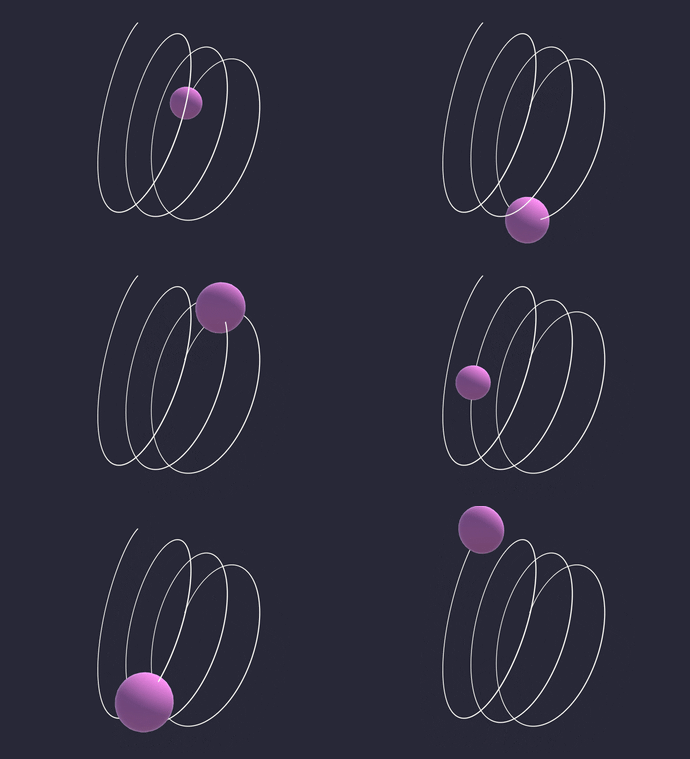
Trigonometry is a fundamental branch of mathematics that is crucial for many fields, including game programming. When it comes to game development, understanding trigonometric functions such as sine
In this post, we will take a look at the basics of trigonometry, including the definitions of sine and cosine, and how to use them to place and move objects All using just
At the end, you will be able to:
- Understand the basics of trigonometry.
- Place and move objects using sine and cosine.
A Geometric Interpretation
Pythagorean Theorem
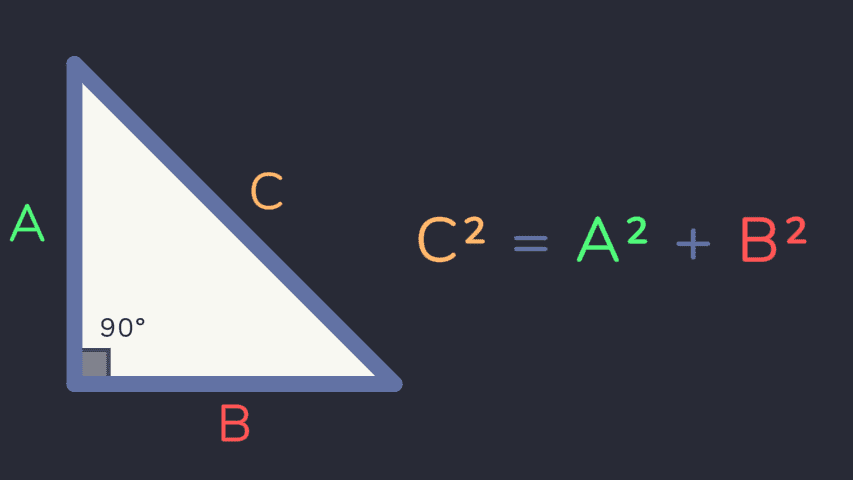
Before we start discussing the
With a strong bases on the theorem, we can get a better understanding of the relationship between the angle
Sine and Cosine
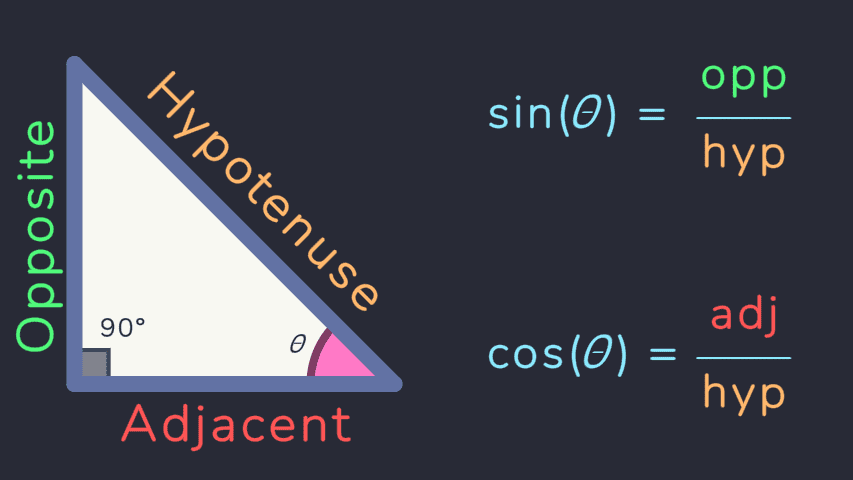
The sine and cosine functions are defined as the ratios of the sides of a right triangle. In trigonometry, an angle is often represented by the Greek letter
In a right triangle, the sine of an angle
Identities
It’s also important to know the existence of trigonometric identities. They are equalities that involve trigonometric functions and are true for every value of the occurring variables. The most basic trigonometric identities are the Pythagorean identities, which are derived from the Pythagorean Theorem. Some of them are:
They may be not so useful for game development, but they are important to know. They can be used to simplify expressions involving trigonometric functions, helping you to avoid unnecessary calculations or to find the value of an unknown trigonometric function.
Tip
You can check the Wikipedia page for identities involving trigonometric functions.
Unit Circle
A great way to visualize the relationship between the angle
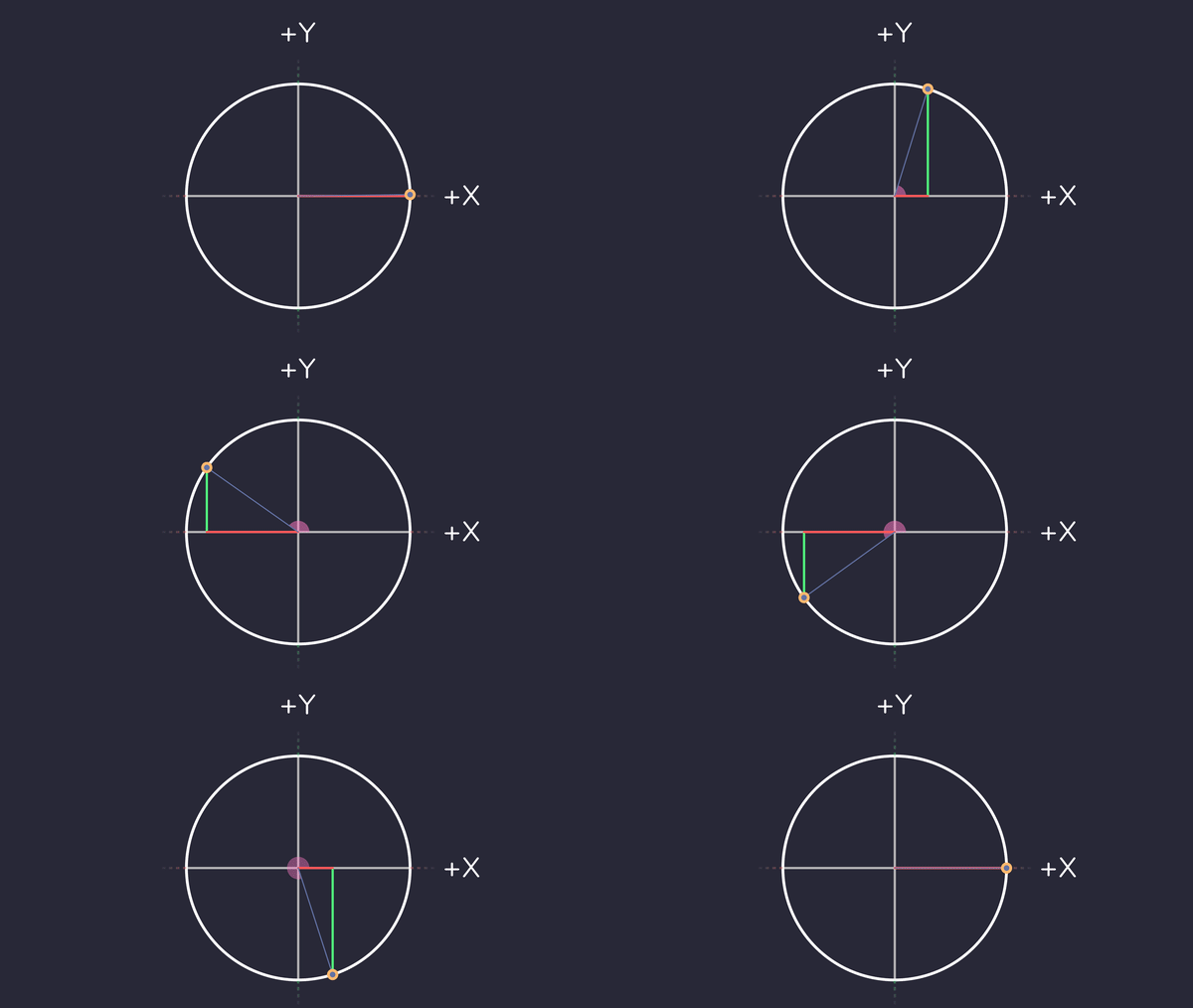
If we place a point on the unit circle and draw a line from the origin to that point, we can see that the line forms an angle
We’ve discovered a relationship between the angle
The coordinates of the point
Degrees, Radians and Turns
There’s some ways to measure angles. The most common ones are degrees, Radians and turns. The following table shows the conversion between these units:
| Degrees | Radians | Turns |
|---|---|---|
| 0 | 0 | |
| 1 |
Note
The symbol
It is championed as the circle constant by the Tau Manifesto.
Tip
There are more ways to measure angles, such as gradians, mils and binary degrees. You can check the Wikipedia page for more information.
Radians vs Degrees
Degrees is easy to understand, since it’s intuitive for us, humans. However, if we compute using degrees, first the whole circumference is calculated, and then it’s multiplied by the fraction of the angle. This is not efficient, since we are calculating the whole circumference when we only need a fraction of it. This is why radians are used in programming.
For examplte, let’s say that we want to calculate the arc length of a circle with radius 2 and angle 45 degrees. Using degrees, we would have:
But when using radians, we can calculate the arc length directly:
Convertions
To convert between the representations, we can check at the below table:
| Degrees | Radians | Turns | |
|---|---|---|---|
| Degrees | - | ||
| Radians | - | ||
| Turns | - |
When to use each one?
When it comes to programming, radians are the preferred unit. This is because the trigonometric functions in most programming languages use radians as input, as it’s more efficient to compute. You must verify the documentation of the framework you are using to check which unit is used by the trigonometric functions by default.
For example, in Unity, the trigonometric functions use Radians as input. So, if you want to calculate the sine of
float angle = 90F;
float radians = angle * Mathf.PI / 180F;
// Alternatively, you can use the Deg2Rad constant:
// float radians = angle * Mathf.Deg2Rad;
float sine = Mathf.Sin(radians);
In Unreal Engine:
float angle = 90.0F;
FMath::Cos(FMath::DegreesToRadians(angle));
In Godot:
var angle = 90.0
var radians = angle * PI / 180.0
var sine = sin(radians)
A word of caution
Representation
Be aware of the representation. For example,
In your further studies, you will see some representations skipping the parenthesis, such as
Placement and Movement
Now that we know the basics of trigonometry, we can use it to place and move objects space. Isn’t that neat? Let’s see how we can do that!
Placement
If we want to place an object at a specific angle, we can use sine and cosine to calculate the x and y coordinates of the object. The following code snippet shows how to place an object at a specific angle using sine and cosine:
public void Place()
{
    // Set position of object
    transform.localPosition = new Vector3(
        Mathf.Cos(angle * Mathf.Deg2Rad) * radius,
        Mathf.Sin(angle * Mathf.Deg2Rad) * radius,
        0F
    );
}
If we want to place a list of objects across a circle, we can use the following code snippet:
public void PlaceInCirclePath()
{
    // The angle between each object.
    float angle = 360F / objects.Count;
    // The current angle.
    float currentAngle = 0F;

    foreach (GameObject obj in objects)
    {
        float x = radius * Mathf.Cos(currentAngle);
        float y = radius * Mathf.Sin(currentAngle);
        obj.transform.position = new Vector3(x, y, 0f);
        currentAngle += angle;
    }
}
Circular motion
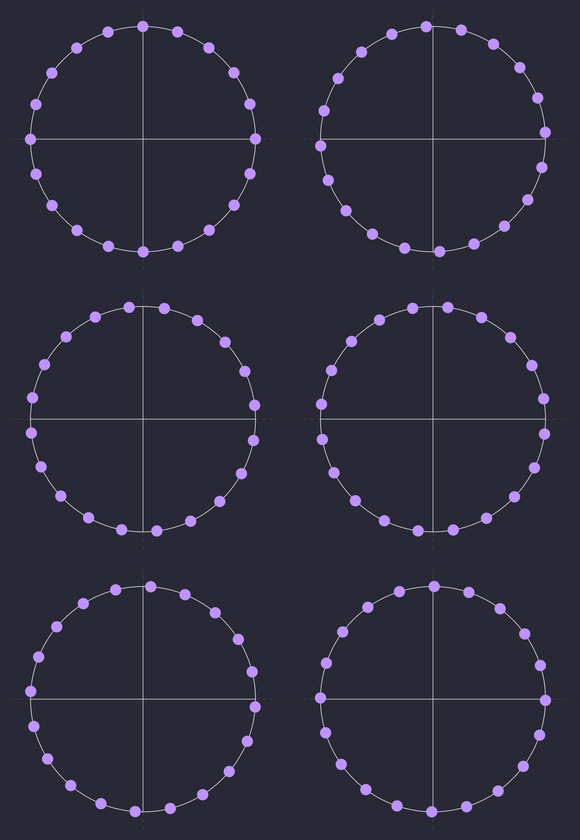
To make an object move in a circular path, we can also use sine and cosine functions not to only place the object, but also to move it. We just need to increase the angle of each object over time. The following code snippet shows how to move an object in a circular path using sine and cosine.
private void Update()
{
    // base angle
    var baseAngle = Time.time * speed;
    for (int i = 0; i < numPoints; i++)
    {
        // get point
        var point = points[i];

        // set position
        var pointAngle = baseAngle + i * Mathf.PI * 2 / numPoints;
        var x = Mathf.Cos(pointAngle) * radius;
        var y = Mathf.Sin(pointAngle) * radius;

        point.transform.localPosition = new Vector3(x, y, 0F);
    }
}
The following gif shows the result of the above code snippet:
Floating motion
If we want to move an object in a floating motion way, we can use
void Update()
{
    angle += speed * Time.deltaTime;
    float y = amplitude * Mathf.Sin(angle);
    transform.position = new Vector3(0f, y);
}
Pendulum motion
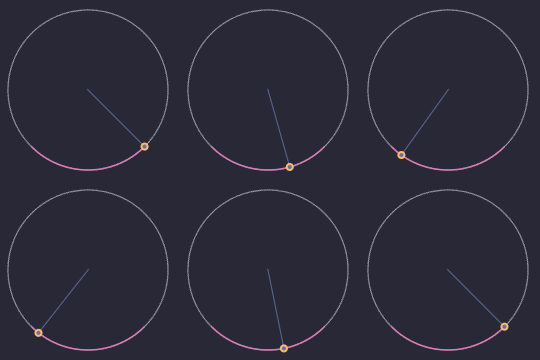
The logic behind this motion simulation involves defining the pendulum’s starting position using an angle in degrees and setting a range for how far it swings from the center.
Take a look at the following code snippet:
// Pendulum angle in degrees (center position)
public float centerAngle = 270F;
// Angle range for the pendulum swing
public float angleRange = 45F;

private void Update()
{
    // Convert the angles to radians
    float centerRad = centerAngle * Mathf.Deg2Rad;
    float rangeRad = angleRange * Mathf.Deg2Rad;

    // Calculate the current angle of the pendulum
    float currentRad = centerRad + rangeRad * Mathf.Cos(speed * Time.time);

    // Calculate the new position of the pendulum
    Vector3 newPos = new Vector3(
        Mathf.Cos(currentRad) * radius,
        Mathf.Sin(currentRad) * radius,
        0F
    );

    // Set the new position of the pendulum
    transform.position = newPos;
}
Spiral motion
For a spiral motion, we can use the exactly circular motion logic, with an addition of a linear increase on the Z coordinate.
The following code snippet shows exactly how to do that:
private void Update()
{
    float angle = speed * Time.time;
    float zPos = zSpeed * Time.time;

    point.localPosition = new Vector3(
        Mathf.Cos(angle) * radius,
        Mathf.Sin(angle) * radius,
        zPos
    );
}
The final result is shown in the animation below: